Best App for IPTV on FireStick in 2026: Top Players and Setup Guide
Introduction
Best App for IPTV on FireStick is a common search for people who want a convenient way to watch compatible live TV streams on their televisions. Amazon Fire TV devices are popular because they provide access to streaming apps, flexible entertainment options, and a simple interface. However, choosing the right IPTV player can be confusing, especially when different applications offer different features, subscription requirements, and installation methods.
If you live in the USA or Canada, the right choice depends on your streaming preferences, the device you own, the IPTV service you use, and the features you need. Some players focus on a simple interface, while others offer electronic program guides, playlist management, favorites, and advanced playback settings.
This guide explains what to look for in the best app for IPTV on FireStick, compares several well-known player options, and explains how to set up a compatible application safely. You will also learn the difference between an IPTV player and an IPTV subscription, how to troubleshoot common problems, and how to evaluate a provider before paying.
IPTV THE FOX also helps customers explore IPTV entertainment options, with service information available at thefoxiptv.net. By the end of this guide, you should understand which features matter most and how to make a more informed decision.
What Is the Best App for IPTV on FireStick?
The best app for IPTV on FireStick is a compatible media player that allows you to organize and play supported streaming content using playlist information or login details supplied by an IPTV provider.
IPTV stands for Internet Protocol Television. Instead of delivering television exclusively through traditional cable or satellite infrastructure, IPTV uses internet-based technology to deliver video streams. Depending on the service and the rights involved, the content may include live television, on-demand movies, series, or other programming.
An IPTV player and an IPTV subscription are not the same thing.
An IPTV player is the application installed on your FireStick. It provides the interface used to load and watch compatible streams.
An IPTV provider supplies the service, which may include channel access, on-demand content, account credentials, and technical support.
For example, installing an IPTV player does not automatically give you access to paid channels. You generally need a compatible playlist or an authorized account from a provider.
What Makes a Good IPTV App?
When comparing the best app for IPTV on FireStick, consider these factors:
Compatibility: The application must support your Fire TV device and its operating system.
Easy navigation: Categories, search, favorites, and menus should be straightforward to use.
Electronic Program Guide (EPG): An EPG can display program schedules when supported by the player and service.
Playlist management: Some applications allow users to organize multiple compatible playlists.
Playback controls: Useful features may include audio-track selection, subtitles, and external-player support.
Stability: The application should operate reliably on your device and network.
Privacy and security: Download apps from trusted sources and review their permissions.
Cost: Check whether the player is free, requires a license, or offers optional paid features.
No single application is automatically the best choice for every user. Your ideal player depends on the features you need and whether it works with your provider.
Why Are IPTV Apps Popular in the USA and
Canada?Viewers in the United States and Canada have access to a wide range of streaming platforms, cable packages, and internet-based entertainment services. IPTV players are appealing to some users because they provide another way to organize compatible internet television content on a supported device.
Convenient Home Entertainment
FireStick devices connect to compatible televisions through HDMI, allowing users to access supported applications without replacing their television. The experience can be especially convenient for people who want to manage several streaming services from one interface
Flexible Content Organization
A compatible IPTV player can organize channels into categories, display program information, and save favorites. Depending on the application, users may also be able to manage playlists or customize their viewing interface.
Different Entertainment Preferences
Some households prioritize news and general entertainment. Others are interested in sports, international programming, movies, or multilingual content. The content available depends on the subscription or playlist being used, rather than the player alone.
A Choice of Applications
Fire TV users may encounter different IPTV players with different interfaces and pricing models. Comparing those applications helps users avoid choosing a player that lacks an important feature or does not support their particular device.
For viewers in the USA and Canada, it is also important to check whether a service is available in their location, whether its content is properly licensed, and whether their internet connection is suitable for the desired video quality.
Benefits of Choosing the Right IPTV Player
Choosing the best app for IPTV on FireStick can make everyday streaming easier. Although a player cannot guarantee better source quality or eliminate internet problems, a well-designed application can improve navigation and provide useful playback controls.
Better Streaming Quality
A capable player can help manage compatible video streams, playback settings, audio tracks, and subtitles. Some applications may support external media players, which can be useful when troubleshooting specific format or playback issues.
However, picture quality depends on several factors:
The quality of the original video stream.
The internet connection and available bandwidth.
The performance of the FireStick device.
The player’s compatibility with the stream format.
The capabilities of the television and display settings.
An IPTV player cannot turn a low-resolution source into genuine 4K video. If a provider advertises HD or 4K streams, confirm that the specific content is actually available in that resolution.
More Organized Channels
Many IPTV players offer channel categories, favorites, search functions, and an electronic program guide. These features can reduce the time spent scrolling through a large playlist.
Some players support multiple playlists, but this capability varies. If you use more than one authorized service, check the app’s current feature list before installing it.
Sports Coverage
Sports fans may prefer a player with a readable guide, responsive navigation, and convenient access to their favorite channels. These features can make it easier to locate a scheduled game or return to a frequently watched channel.
Remember that the player itself does not supply sports broadcasting rights. The channels and events available depend on the provider, regional availability, and applicable licensing.
Flexible Entertainment
An IPTV player may help organize live channels and supported on-demand content in one interface. This can be convenient for households that enjoy a mixture of news, entertainment, documentaries, movies, and series.
Actual content availability depends on the provider and the subscription package.
Potentially Affordable Setup
Some IPTV players are free, while others offer paid licenses or additional features. Comparing the total cost of the application and the service can help you avoid unexpected expenses.
Before paying, check the app’s official pricing, supported devices, renewal terms, and refund policy. A free player does not mean that the television content it plays is free.
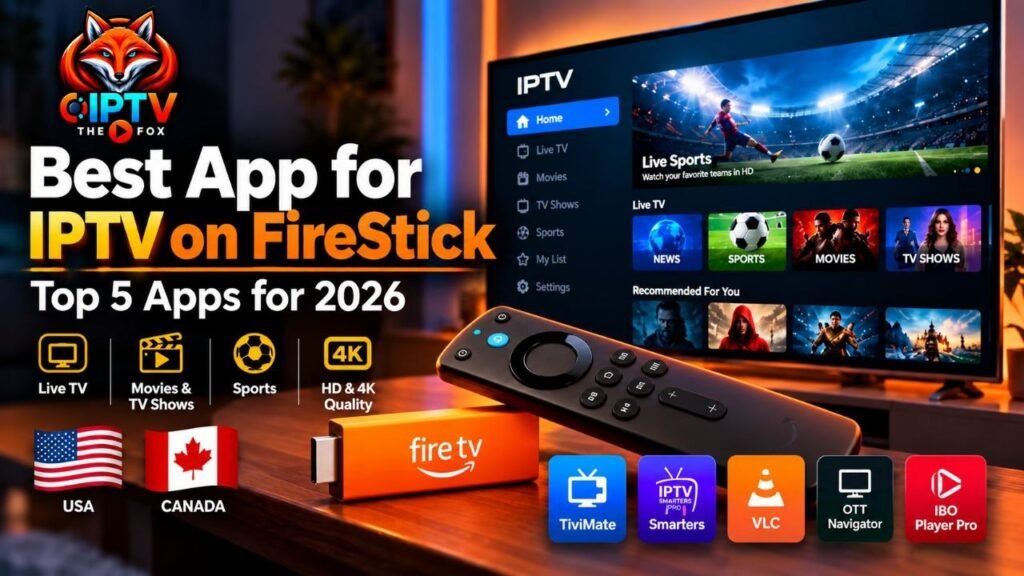
Best IPTV Apps for FireStick Compared
subscription requirements. The applications below have different strengths, and availability may vary by device, operating system, and region.
Always check the developer’s current documentation or the official app store before installing an application
1. TiviMate
TiviMate is known for its television-oriented interface and electronic program guide features on supported Android TV devices. It is often considered by users who want a traditional channel-list experience.
Potential advantages:
A TV-focused interface.
Program-guide features.
Channel organization and favorites.
Additional features that may depend on the license or version.
Things to check:
Confirm compatibility with your specific Fire TV model.
Review the current licensing and premium-feature requirements.
Verify that your playlist format is supported.
TiviMate is not a television subscription. You must have a compatible playlist or authorized service to access content.
2. IPTV Smarters
IPTV Smarters is a player family used with compatible IPTV account information. Its features and availability can vary between versions and platforms.
Potential advantages:
An interface designed for organizing compatible IPTV content.
Support for certain playlist or account formats.
Live-TV and on-demand organization where supported.
A familiar category-based browsing experience.
Things to check:
Use the correct version for your device.
Confirm whether your provider supports the required login method.
Check the current official installation instructions and any licensing terms.
If an app closes when you open categories or loads playlists slowly, the problem may relate to the application version, device performance, playlist size, or internet connection.
3. VLC Media Player
VLC is a well-known open-source media player that supports many media formats and network-streaming workflows on supported platforms. It can be useful for users who want a general media player rather than an IPTV-specific interface.
Potential advantages:
Broad media-format support on compatible platforms.
Useful playback controls.
An established open-source project.
No need for a dedicated IPTV interface for every supported stream.
Things to check:
Verify whether the version you need is available for your Fire TV device.
IPTV-specific features such as an EPG or advanced channel management may not match those of dedicated players.
Make sure the stream or playlist format is supported.
VLC is not a provider and does not include a paid television subscription.
4. OTT Navigator IPTV
OTT Navigator IPTV is an IPTV player associated with advanced channel browsing and content organization on supported Android platforms.
Potential advantages:
Detailed channel organization.
Program-guide features where supported.
Options for browsing and filtering compatible content.
A range of interface and viewing preferences.
Things to check:
Verify installation availability for your exact Fire TV device.
Review the current setup instructions.
Check whether the features you want are available in your version.
Some Android applications may not be officially available for every Fire TV model. Do not assume that an APK intended for one Android device will work correctly on another.
5. IBO Player Pro
IBO Player Pro is another player option that some users consider for compatible smart-TV and streaming-device setups.
Potential advantages:
A player interface for compatible content.
Availability on selected supported platforms.
An alternative for users whose device and playlist are compatible.
Things to check:
Confirm that the exact version supports your device.
Review the current activation fee or license terms, if applicable.
Follow the developer’s official setup instructions.
Confirm whether your provider supports the player.
An app’s availability on one smart-TV platform does not mean that the same app is available on FireStick.
Which IPTV App Should You Choose?
Use the following table as a starting point rather than a guarantee of compatibility.
| App | Potential strength | Important consideration |
|---|---|---|
| TiviMate | TV-style navigation and EPG | Check device compatibility and license requirements |
| IPTV Smarters | IPTV account and content organization | Features vary by version and platform |
| VLC | General media playback | May lack advanced IPTV-specific organization |
| OTT Navigator IPTV | Advanced channel browsing | Confirm Fire TV compatibility |
| IBO Player Pro | Alternative player option | Verify supported devices and activation terms |
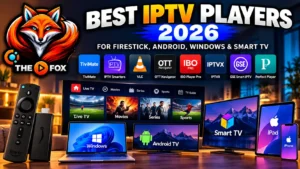
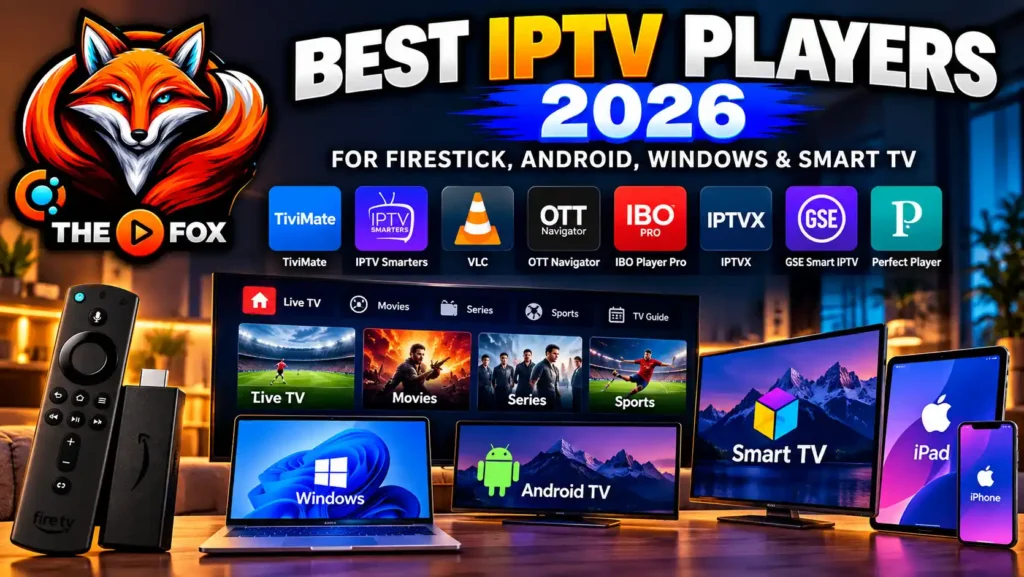
For a broader overview across FireStick, Android, Windows, and smart TVs, read our guide: Best IPTV Players in 2026: Top Apps for FireStick, Android, Windows & Smart TV.
Features to Look for in the Best App for IPTV on FireStick
Before choosing the best app for IPTV on FireStick, consider how you actually watch television. A feature-rich application is not necessarily the best option if it is difficult to use or incompatible with your setup.
1. Fire TV Compatibility
Confirm that the application supports your FireStick model and operating system. An app that works on a phone or Android TV box may not provide the same experience on Fire TV.
2. Electronic Program Guide
An EPG displays program schedules when the player and playlist support the feature. This can help users find current and upcoming programs without opening every channel.
3. Fast Navigation
Look for clear menus, responsive category browsing, a useful search function, and easy access to favorites. These features are particularly valuable when a playlist contains many channels.
4. Playlist and Login Support
Different IPTV services may use different connection methods. Before subscribing, ask the provider which player formats and login methods are supported. Never share account credentials with untrusted third parties.
5. Playback and Subtitle Controls
Audio selection, subtitles, aspect-ratio controls, and external-player options can be useful, depending on the content. Confirm that your preferred features are included in the specific app version.
6. Transparent Pricing
Check whether the app is free, requires a one-time activation fee, or offers a recurring premium license. Also distinguish the app’s price from the cost of the IPTV service itself.
7. Privacy and Security
Download software from official sources whenever possible. Avoid unknown APK websites, suspicious permissions, and applications that ask for unrelated personal information.
How to Install an IPTV App on FireStick
Installation steps differ between applications. The safest approach is to use the Amazon Appstore or another installation method explicitly documented by the app developer.
Step 1: Prepare Your FireStick
Turn on your Fire TV device and connect it to a reliable internet network. Check for available system updates and make sure you have enough storage for the application.
Step 2: Search for the Application
Open the Fire TV search function and enter the exact name of the app. If it is listed in the Amazon Appstore for your device, review the developer information and install it through the store.
Step 3: Follow the Official Installation Instructions
If the application is not available in the store, check whether its developer provides an official installation guide for your model and region.
Some apps are not supported on every Fire TV device. Do not enable unknown-source installation or install an APK simply because a third-party website recommends it. Use sideloading only when the developer documents the method and you understand the security implications.
Step 4: Open the Application
After installation, launch the app and review its initial setup instructions. Depending on the player, you may be asked to add a playlist, enter compatible account credentials, or configure a supported connection.
Step 5: Test Basic Functions
Confirm that menus open correctly, the playlist loads, and supported channels play as expected. Test the electronic program guide, search, and favorites if those features are available.
If installation fails, check the app’s official support documentation before trying unofficial downloads.
How to Set Up Your IPTV Player
Installing the best app for IPTV on FireStick is only the first part of the process. You also need a compatible playlist or account from a legitimate service
Use the Correct Connection Details
Your provider should tell you which connection method the player supports. This may involve account credentials or an authorized playlist. Enter the information carefully and avoid sharing it publicly.
If your provider supplies a server address, use the exact address it gives you. Do not substitute an unrelated server URL or change account details without guidance.
Allow the Playlist to Load
A large playlist may take time to process, especially on a device with limited storage or memory. Allow the application to finish loading before repeatedly restarting it.
If the playlist fails, check the internet connection, verify your login details, and confirm with the provider that the account is active and compatible with the selected player.
Organize Channels
Where supported, create a favorites list and use categories to simplify navigation. If the player offers an EPG, follow its instructions for loading program data.
Test Your Network
For reliable streaming, use a stable internet connection. Wi-Fi may work well when the signal is strong, while an Ethernet adapter can be useful in some setups.
There is no single internet-speed requirement for every stream. Higher resolutions and multiple simultaneous streams generally require more bandwidth. Network congestion, Wi-Fi interference, and provider-side issues can also affect performance.
Common FireStick IPTV Problems and Solutions
Even the best app for IPTV on FireStick can experience problems when the device, application, network, or playlist is not working as expected.
The Playlist Will Not Load
Try these checks:
Confirm that the FireStick is connected to the internet.
Verify your username, password, or playlist details.
Check whether the subscription is active.
Confirm that the provider supports the selected application.
Restart the application and allow it to refresh.
If the problem continues, contact the provider to confirm that the account and connection details are correct.
Channels Keep Buffering
Buffering can be caused by weak Wi-Fi, network congestion, an overloaded device, a slow source stream, or a provider-side problem.
Try moving the FireStick closer to the router, restarting the router if appropriate, closing unused applications, and testing another authorized stream. If only one channel is affected, the problem may be with that particular stream rather than the entire application.
The App Closes Unexpectedly
Check for app and Fire TV system updates. Restart the device and clear the application’s cache if the device settings provide that option.
Avoid clearing application data unless you know how to restore your account information. Clearing data may remove saved settings or login details.
Search or Categories Are Slow
Large playlists can make navigation slower. If your application supports playlist filtering, hide unnecessary categories or favorites that you do not use. You can also restart the player and check for updates.
The Application Cannot Be Installed
Confirm the device model, available storage, region, and current application requirements. An application may not support every Fire TV generation.
Use the developer’s official documentation rather than downloading a modified or unknown version
Why Choose IPTV THE FOX?
Choosing a suitable player is important, but the quality of the IPTV service behind it matters just as much. IPTV THE FOX provides information about its subscription options and supported setup at thefoxiptv.net.
When evaluating an IPTV provider for your home in the USA or Canada, look for transparent package details, supported devices, reliable account activation, and responsive technical assistance.
Depending on the selected package and current availability, IPTV THE FOX promotes a broad entertainment selection that may include:
Live television channels.
Sports and general entertainment programming.
Movies and TV series available through supported content categories.
HD, Full HD, and 4K options where the specific stream supports them.
Compatibility with supported FireStick, Android TV, and smart-TV setups.
Help with application setup and common connection issues.
Assistance with subscription activation and account questions.
Actual channel availability, video resolution, and device compatibility can vary by package, application, location, and source stream. Check the current service details before purchasing.
Help With IPTV App Installation
Finding the best app for IPTV on FireStick is only part of the setup process. Some customers also need help locating a compatible player, entering their connection details, or understanding how to refresh a playlist.
IPTV THE FOX can help customers with supported setup steps and direct them to relevant installation instructions when available. If you need help with a particular app, explain which FireStick model you use and describe the problem clearly.
Add your internal links here:
[Insert your TiviMate installation guide]
[Insert your IPTV Smarters installation guide]
[Insert another FireStick troubleshooting guide]
These links can help readers move from a general comparison to a detailed tutorial without repeating the same information in every article.
If you are comparing IPTV providers in the USA, evaluate customer support, compatibility, service terms, and available content rather than relying only on promotional claims. You can visit IPTV THE FOX at thefoxiptv.net to review the current offer and determine whether it fits your requirements.
Get a Free IPTV Trial
A trial can be a useful way to evaluate an IPTV service before committing to a longer subscription. If a free trial is available to you through IPTV THE FOX, use the opportunity to test the service on the device and network you intend to use.
During your trial, consider checking:
Streaming quality: Test available channels at different times of day.
Channel selection: Confirm that the categories you want are available.
Sports and entertainment: Test relevant content that is included in the trial.
Device compatibility: Verify that your chosen IPTV player works with the service.
Navigation: Check whether the playlist loads and categories respond correctly.
Support: Ask a setup question to understand the available assistance.
Trial duration, eligibility, and included features may vary. Confirm the current terms before requesting access.
To learn about the available trial and subscription options, visit IPTV THE FOX and follow the current instructions. Do not provide payment information or account credentials through unofficial websites or messages.
Supported Devices
Although this guide focuses on the best app for IPTV on FireStick, IPTV players and services may support several other platforms. Compatibility depends on the exact application, operating system, and provider.
| Device | What to check |
|---|---|
| Amazon FireStick | Fire OS compatibility and the official installation method |
| Android TV | Support for the device’s Android TV version |
| Smart TV | Availability for the TV’s operating system and model |
| Roku | Whether the provider and app support the required Roku setup |
| MAG Box | Compatibility with the specific portal and device model |
| iPhone | Availability of a compatible iOS player |
| iPad | App compatibility and playlist support |
| Android phones | Support for the Android version and chosen player |
Not every IPTV player works on every device. Roku, MAG devices, and smart TVs may use different installation and connection methods from FireStick.
Before purchasing a subscription, confirm that the provider supports your device and the application you plan to use. If you want to watch on multiple devices at the same time, check the subscription’s simultaneous-connection rules rather than assuming one account supports unlimited connections.
Frequently Asked Questions
1. What Is the Best App for IPTV on FireStick in 2026?
There is no single best application for every user. TiviMate, IPTV Smarters, VLC, OTT Navigator IPTV, and IBO Player Pro have different features and platform requirements. Compare compatibility, navigation, EPG support, pricing, and the connection method required by your provider.
2. Is There a Free IPTV App for FireStick?
Some media players are free to use, while others charge for premium features or activation. However, a free player does not automatically provide access to television channels. You need a compatible playlist or authorized service, and you should verify the app’s current availability for your device.
3. Do IPTV Apps Include Live TV Channels?
Usually, an IPTV player is a tool for playing compatible content rather than a channel subscription itself. Channel access depends on the playlist or service you use. Confirm that the provider has the rights to distribute the content in your location.
4. Why Does My IPTV App Keep Buffering on FireStick?
Buffering may be caused by an unstable connection, Wi-Fi interference, network congestion, device performance, or a problem with the stream. Test your connection, restart the player, check for updates, and contact your provider if the issue persists across multiple channels.
5. Can I Use the Same IPTV Subscription on Multiple Devices?
That depends on your provider’s terms and the number of simultaneous connections included in your package. Some subscriptions are limited to one active device, while others allow additional connections. Confirm the rules before trying to use the same account on several devices.
6. Is FireStick Compatible With Every IPTV Player?
No. Compatibility varies by FireStick generation, Fire OS version, app availability, and installation method. Check the developer’s official requirements before installing a player, and avoid untrusted downloads.
7. Do I Need a VPN to Use IPTV on FireStick?
Not necessarily. Whether a VPN is appropriate depends on your network, location, privacy preferences, provider’s terms, and applicable law. A VPN can sometimes affect speed or connectivity. Follow the service’s guidance and do not use it to bypass legal restrictions.
8. How Can I Choose an IPTV Provider in the USA or Canada?
Compare supported devices, channel information, content licensing, pricing, trial terms, customer support, privacy practices, and cancellation conditions. Test the service where a trial is offered, and confirm that the package meets your needs before paying.
Conclusion
Choosing the Best App for IPTV on FireStick starts with understanding what you need from your viewing experience. Some users want a simple player with basic playback controls, while others prefer a television-style interface, electronic program guide, playlist management, and advanced organization features.
TiviMate, IPTV Smarters, VLC, OTT Navigator IPTV, and IBO Player Pro are options worth investigating, but their features and compatibility vary. Always check the official documentation, confirm that the application supports your FireStick model, and review any licensing or activation fees before installing it.
Remember that an IPTV player and an IPTV provider serve different purposes. The player manages compatible streams; the provider determines which content is available through its service. For viewers in the USA and Canada, it is important to consider content rights, device compatibility, subscription terms, and network quality.
IPTV THE FOX provides information about its service and available subscription options at thefoxiptv.net. You can review the current details and ask about supported applications before deciding whether the service is right for you.
Looking for a reliable IPTV service in the USA or Canada? Visit IPTV THE FOX today, explore the available subscription plans, and ask about a free IPTV trial if eligible. Test compatibility and streaming performance on your own device before choosing a subscription.