How to Install IPTV on Apple TV: Step-by-Step Guide
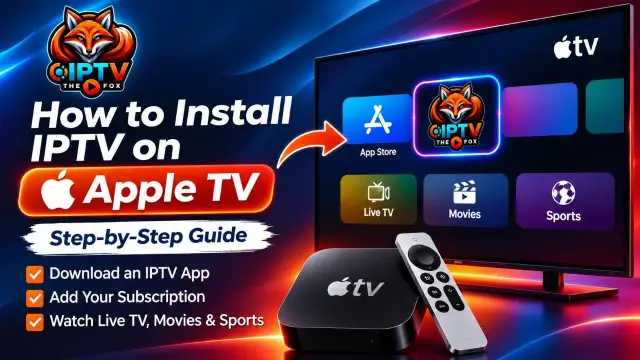
How to Install IPTV on Apple TV is easier than you might think. If you own an Apple TV HD or Apple TV 4K, you can enjoy IPTV through a compatible player app downloaded from the Apple App Store. You simply need a compatible IPTV application, an active subscription, and the correct login details from your provider.
In this guide, we’ll explain how to install an IPTV app, connect your subscription, and start watching live TV on your Apple TV. We’ll also cover Apple TV 4K setup, common problems, and useful tips for a smoother streaming experience.
Whether you’re in the United States or Canada, this guide will help you get started with IPTV THE FOX.
What Do You Need Before Installing IPTV?
Before starting the installation, make sure you have everything ready.
1. An Apple TV device
You need an Apple TV HD or Apple TV 4K that supports the App Store. Older Apple TV models, such as the third-generation model, do not support downloading new apps from the App Store.
2. A compatible IPTV player
An IPTV player is an application that allows you to load and organize your IPTV subscription. It does not normally provide TV channels or subscriptions by itself.
3. Your IPTV subscription details
Your IPTV provider should supply the information required by your chosen player. This may include:
Server URL or portal address
Username
Password
M3U playlist URL, if supported
4. A stable internet connection
A reliable internet connection helps reduce buffering and playback interruptions. Your required speed depends on the video quality, network conditions, and the number of devices using your connection.
How to Install IPTV on Apple TV
Follow these steps to install a compatible IPTV player and connect your subscription.
Step 1: Turn On Your Apple TV
Connect your Apple TV to your television using an HDMI cable and turn on the device.
Make sure it is connected to your home Wi-Fi network or Ethernet connection. If this is your first time using Apple TV, follow the on-screen instructions to complete the initial setup.
Step 2: Open the Apple App Store
From the Apple TV Home Screen, find and open the App Store.
The App Store is where you can browse and download applications supported by your Apple TV.
Step 3: Search for an IPTV Player
Select the Search option and enter a search term such as IPTV player.
You can explore available applications and check their descriptions to see whether they support Apple TV, M3U playlists, or Xtream Codes login.
App availability can vary depending on your country, Apple TV model, and tvOS version.
Step 4: Download and Install the App
Choose an IPTV player that meets your requirements.
Select Get, Buy, or the displayed download option. If the application is paid, check its price and subscription terms before purchasing.
Wait for the installation to finish. The app should then appear on your Apple TV Home Screen.
Step 5: Open the IPTV Application
Launch the application you just installed.
Depending on the player, you may see different options for adding a playlist or connecting an IPTV account.
Common login methods include:
Xtream Codes API
M3U playlist URL
Other connection methods supported by the application
Step 6: Enter Your IPTV Subscription Details
Choose the login method supported by your provider and enter the details supplied with your subscription.
For an Xtream Codes connection, you may need:
Server URL: Your provider’s server address
Username: Your assigned username
Password: Your assigned password
Make sure every detail is entered correctly. Even one missing character can prevent the connection from working.
Step 7: Load Your Channels and Start Watching
After entering your details, select the login or add playlist option.
Give the application some time to load your channel list and programme guide, if your subscription and player support EPG.
Once the setup is complete, browse the available categories and select a channel to test playback.
You have now completed the basic IPTV setup on Apple TV.
How to Install IPTV Smarters on Apple TV
If you prefer IPTV Smarters, first check the Apple App Store for a version that specifically supports Apple TV.
Follow these instructions:
Open the App Store on your Apple TV.
Search for an available Smarters IPTV player.
Check that the app listing confirms Apple TV compatibility.
Download the application.
Open it after installation.
Select the supported login method.
Enter your IPTV subscription information.
Wait for your playlist to load.
Important: Different applications can have similar names. Always check the developer, supported devices, features, and app details before installing. IPTV Smarters and other IPTV players are separate applications from your IPTV subscription provider.
How to Set Up IPTV on Apple TV 4K
The installation process for Apple TV 4K is very similar to the process for other supported Apple TV models.
However, there are a few things worth checking:
Update tvOS: Install available system updates to help maintain app compatibility.
Use a suitable IPTV player: Check the app’s Apple TV and tvOS requirements.
Use a reliable connection: Ethernet can be a useful option if your Wi-Fi connection is unstable.
Check your source quality: Your actual picture quality depends on the stream supplied by your IPTV provider and the capabilities of your device.
Allow the playlist to load: Large channel lists may take some time to process.
Apple TV 4K supports high-resolution video, but having a 4K device does not automatically make every IPTV channel a 4K stream.
Troubleshooting Common IPTV Problems on Apple TV
Sometimes an IPTV application may fail to load channels or play a stream. Here are a few basic checks you can try.
IPTV App Is Not Showing in the App Store
Not every IPTV application is available on every Apple TV model or in every country.
Check your device model, tvOS version, and the app’s compatibility information. If an application is unavailable, look for another legitimate player that supports Apple TV.
IPTV Playlist Is Not Loading
Check your login information carefully. Make sure the server URL, username, and password match the details supplied by your provider.
If you use an M3U playlist, confirm that the complete URL has been entered correctly.
IPTV Channels Keep Buffering
Try the following:
Restart your Apple TV.
Restart your router.
Test your internet connection.
Close and reopen the IPTV application.
Try another channel to check whether the issue affects one stream or all streams.
Use Ethernet if Wi-Fi is unstable.
If the problem continues, contact your IPTV provider to check the service and connection details.
EPG Is Not Showing
The Electronic Programme Guide (EPG) depends on the information supplied by your provider and the features supported by your IPTV player.
Try refreshing the playlist or EPG from the application’s settings. If the guide is still missing, ask your provider whether EPG data is included.
Tips for Better IPTV Streaming on Apple TV
A few simple adjustments can help improve your viewing experience.
Use a stable internet connection: A reliable Wi-Fi connection or Ethernet connection can help reduce interruptions.
Keep your applications updated: App updates may include compatibility improvements and bug fixes.
Choose the right video quality: Select a stream quality suitable for your internet connection and device.
Avoid unnecessary network usage: Large downloads and multiple simultaneous streams can affect available bandwidth.
Protect your login details: Only enter your subscription information into an application you trust.
Why Choose IPTV THE FOX?
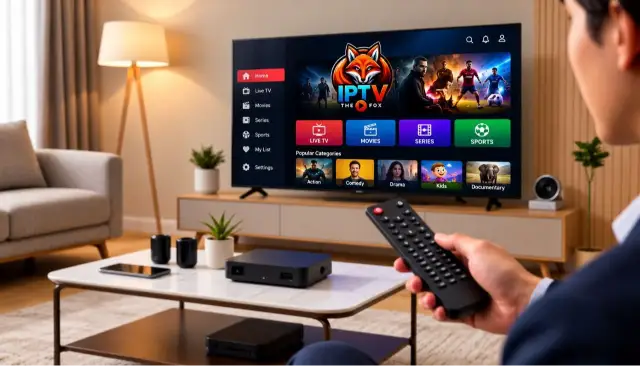
Once your Apple TV is ready, choosing a compatible IPTV subscription is the next step.
IPTV THE FOX offers a streaming subscription designed for viewers who want access to live TV, sports, movies, and entertainment through supported IPTV players and devices.
With IPTV THE FOX, you can explore:
24,000+ live TV channels.
180,000+ movies and TV series.
Sports coverage and selected PPV events.
HD, Full HD, and 4K streams where available.
Support for compatible streaming devices and IPTV applications.
Customer assistance with setup and connection questions.
The service’s available channels and video quality may vary by subscription, source, device, and internet connection.
If you want to learn more, visit the IPTV THE FOX official website and check the available subscription options. You can also contact the support team to ask about compatibility with your Apple TV and request information about a free trial.
Ready to get started? Explore IPTV THE FOX and find a subscription that suits your streaming needs.
Frequently Asked Questions
Frequently Asked Questions
You can install a compatible IPTV player from the Apple App Store on supported Apple TV models. You then add a playlist or subscription supplied by your IPTV provider.
How to Install IPTV on Apple TV 4K?
Open the App Store, search for an IPTV player that supports Apple TV 4K, download it, and enter your subscription details using a supported login method.
Can I install IPTV Smarters on Apple TV?
You may be able to install a Smarters-branded IPTV player if a compatible version is available in your App Store region. Always check the app listing before downloading
Does Apple TV have a built-in IPTV app?
Apple TV does not include a universal IPTV subscription player by default. You need to download a compatible application from the App Store.
Do IPTV apps provide channels automatically?
No. Most IPTV player applications do not include channels or subscriptions. You need a playlist or subscription from a provider that has the necessary rights to distribute the content
Can I watch 4K IPTV on Apple TV?
Apple TV 4K supports 4K video output, but actual streaming quality depends on the channel source, IPTV player, subscription, internet connection, and television.
Do I need an M3U link or Xtream Codes?
That depends on the IPTV player and provider. Some applications support both methods, while others may support only one. Ask your provider which connection details are available.
Conclusion
Learning How to Install IPTV on Apple TV does not have to be complicated. With a supported Apple TV model, a compatible IPTV player, and the correct subscription details, you can set up your IPTV service in a few simple steps.
Start by downloading a suitable player from the Apple App Store, add your playlist or login details, and test your channels. If you experience problems, check your internet connection, application compatibility, and subscription information.
If you’re looking for a subscription to use with a compatible player, visit IPTV THE FOX to explore the available plans and ask the support team about Apple TV setup assistance.
Enjoy a more convenient way to explore live TV, sports, movies, and entertainment on your Apple TV.