How to Install TiviMate on FireStick in 2026: Complete Step-by-Step Guide
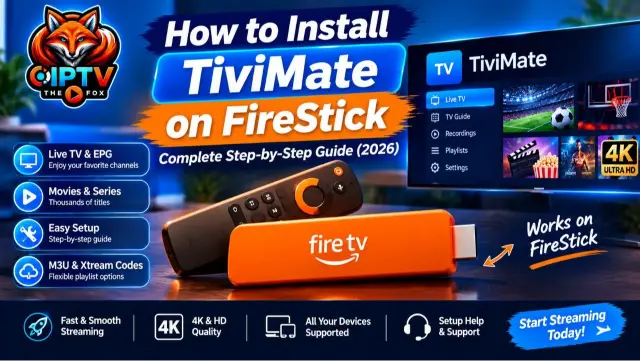
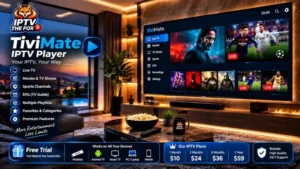
If you want to organize your IPTV playlists and enjoy a familiar TV guide experience, TiviMate is one application worth exploring. Its interface is designed for television screens, making it easier to browse channels, manage playlists, and view available program information.
In this guide, you will learn how to install TiviMate on FireStick, configure your playlist, understand its main features, and troubleshoot common problems. We will also cover TiviMate Premium, alternative IPTV players, and answers to frequently asked questions.
Whether you are using a Fire TV Stick 4K, Fire TV Stick 4K Max, or another compatible Fire TV device, follow the instructions below and check your device’s software version before installing applications.
What Is TiviMate IPTV Player?
TiviMate is an IPTV player designed for compatible Android TV and Fire TV devices. It allows users to organize and access compatible IPTV playlists through a television-friendly interface.
Unlike a television subscription provider, TiviMate does not supply live channels, movies, or TV shows. You need a compatible playlist from a source that is authorized to distribute the content.
Some of the features associated with TiviMate include:
M3U playlist support: Add compatible playlists using an M3U URL.
Xtream Codes API: Configure a playlist using the login details supplied by your provider.
Electronic Program Guide (EPG): View program information when supported by your playlist.
Custom channel groups: Organize channels into categories and favorites.
Multiple playlists: Manage more than one compatible playlist.
Catch-up and recording: Access these functions when supported by the application version, device, playlist, and applicable permissions.
These features make TiviMate useful for people who want more control over how their compatible playlists are organized.
Can You Install TiviMate on Amazon FireStick?
Yes. TiviMate is designed for Android TV and Fire TV environments, and compatible FireStick devices can run it.
However, the application may not be available directly through the Amazon Appstore. Depending on your device and the current distribution method, installation may require sideloading.
Sideloading means installing an application using an installation file instead of downloading it directly from the device’s official app store.
Before proceeding, make sure you use a trusted source for the installation file. Avoid modified APK files and unfamiliar download websites.
What You Need Before Installing TiviMate
Before starting the installation, prepare the following:
An Amazon FireStick or compatible Fire TV device.
A working internet connection.
The Downloader application, if you plan to use it.
A legitimate TiviMate installation file from a trusted source.
A compatible IPTV playlist if you want to configure channels.
You do not need an IPTV subscription just to install and open the player. A compatible playlist is required to access television content.
How to Install Downloader on FireStick
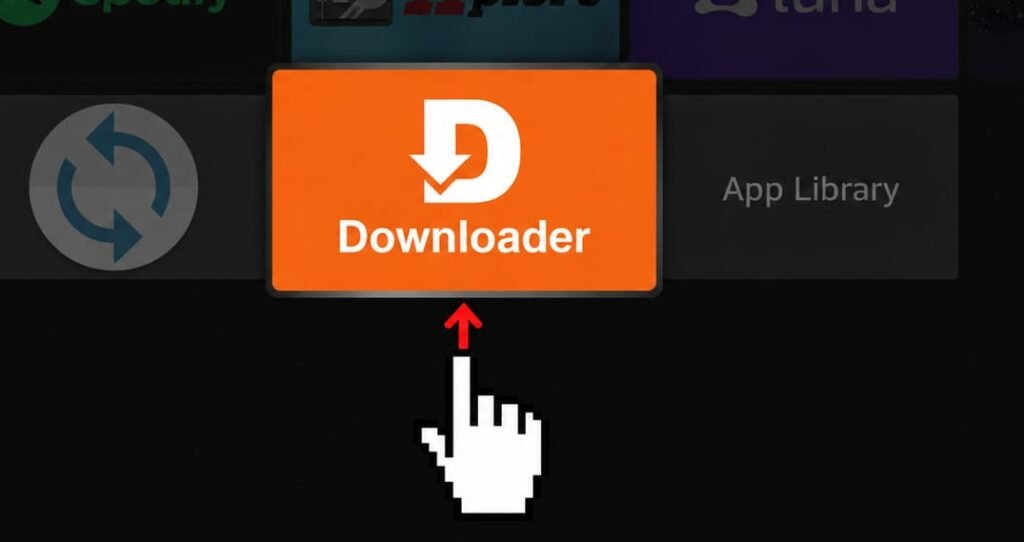
Downloader is a utility that allows Fire TV users to access and download files.
Follow these steps:
Turn on your FireStick.
Go to the home screen.
Select the Search icon.
Search for Downloader.
Choose the Downloader application from the Amazon Appstore.
Select Download or Get.
Wait for the installation to finish.
Open Downloader.
If Downloader is already installed, you can move to the next section.
How to Enable Developer Options on FireStick
Some Fire TV devices require additional permission before you can install applications from outside the Amazon Appstore.
To check your Developer Options:
Open Settings on your FireStick.
Select My Fire TV or Device & Software, depending on your software version.
Choose About.
Highlight your Fire TV device name.
Press the Select button on your remote seven times if Developer Options is hidden.
Return to the previous menu.
Open Developer Options, if available.
Look for the option to allow installation from unknown sources or manage installation permissions for Downloader.
Menu names and available options can vary by Fire OS version. Some newer software versions may handle these permissions differently.
Security tip: Only allow installation from sources you trust. Disable permissions you no longer need after completing the installation.
For more information, see Amazon’s Fire TV developer documentation.
How to Install TiviMate on FireStick Step by Step
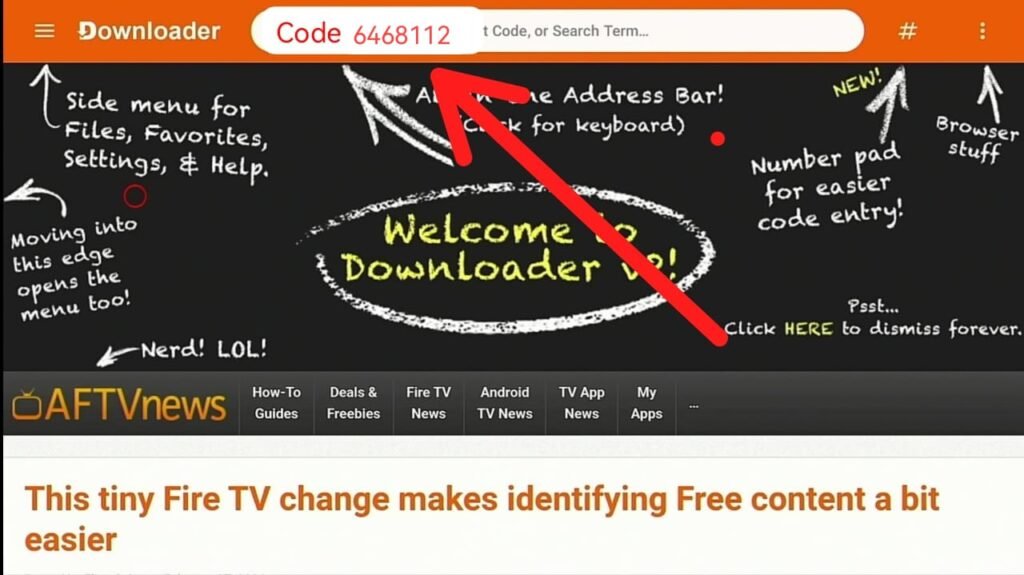
Once Downloader is ready, you can continue with the installation.
Open Downloader on your FireStick.
Select its URL or address field.
Enter the official TiviMate download address or follow the installation instructions provided by the developer.
Check that the download source is legitimate.
Download the compatible installation file if one is provided.
Wait until the download finishes.
Select Install.
Allow FireStick to complete the installation.
Select Open to launch TiviMate.
If your device displays a security warning, do not ignore it automatically. Verify the application source and check that the installation file is compatible with your device.
After installation, you can find TiviMate in your FireStick applications library.
How to Set Up TiviMate on FireStick
After opening TiviMate for the first time, you can begin configuring your playlist.
The exact screens may vary depending on the application version, but the general process is straightforward.
Launch TiviMate.
Select Add Playlist.
Choose the playlist format supported by your provider.
Enter the requested playlist information.
Continue through the setup screens.
Allow the application to process the playlist.
Open the channel guide when setup is complete.
Your provider may supply an M3U URL or Xtream Codes login information.
Always enter your details carefully. A missing character or incorrect server address can prevent the playlist from loading.
How to Add an M3U Playlist to TiviMate
An M3U playlist is a file or URL containing information about available media streams.
If your authorized provider supplies an M3U URL, follow these general steps:
Open TiviMate.
Select Add Playlist.
Choose the M3U playlist option.
Enter the M3U URL supplied by your provider.
Continue to the next screen.
Wait for TiviMate to process the playlist.
Review the available channels and categories.
If the playlist does not load, check that the URL is correct and has not expired.
How to Add Xtream Codes to TiviMate
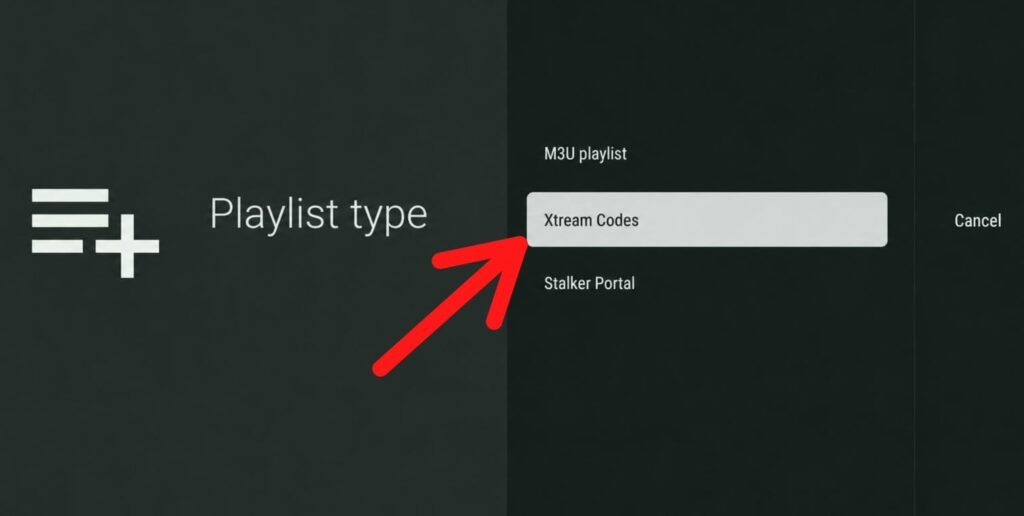
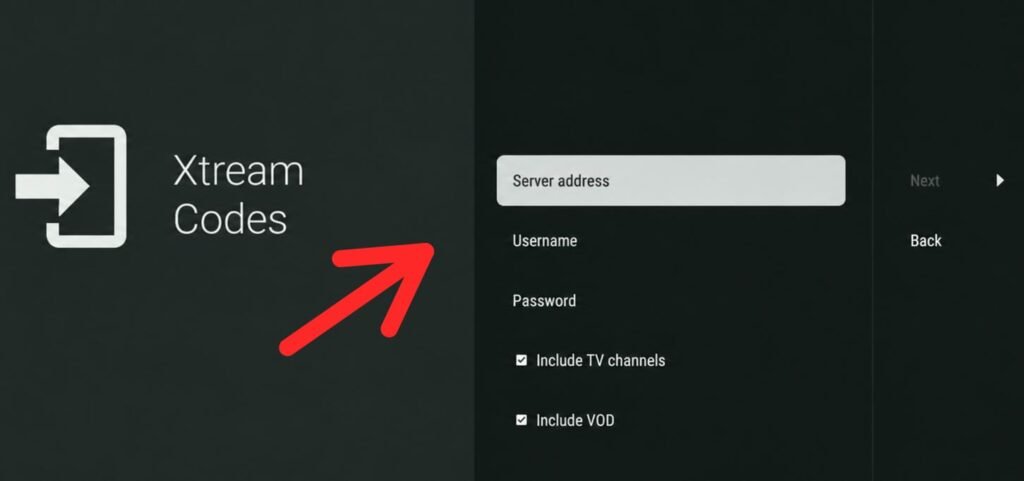
Some IPTV providers supply connection details through the Xtream Codes API format.
These details generally include:
Server address or URL.
Username.
Password.
To configure this type of playlist:
Open TiviMate.
Select Add Playlist.
Choose the Xtream Codes login option if available.
Enter the server address.
Enter your username and password.
Continue with the setup.
Wait for the playlist and available program information to load.
Keep your login details private. Do not share screenshots containing your password or personal connection information.
Best TiviMate Features You Should Know
TiviMate includes several features that can make playlist management more convenient.
Electronic Program Guide (EPG)
The Electronic Program Guide displays available program schedules and descriptions.
When your playlist includes compatible EPG information, you can use the guide to see what is currently playing and what is scheduled next.
If the guide is empty, check the EPG source and refresh the guide from the application settings.
Custom Channel Groups
Channel groups help organize a large playlist into more manageable categories.
Depending on the playlist information, you may be able to browse categories, create favorites, and make frequently used channels easier to find.
Multiple Playlist Support
TiviMate can manage multiple compatible playlists, depending on the version and account features you use.
This can be useful if you have more than one authorized source and want to organize them within one application.
Catch-Up and Recording
Catch-up and recording capabilities depend on the features supported by your TiviMate version, device, playlist, and content permissions.
A player cannot create catch-up access if the source does not provide it. Similarly, recording may require compatible storage and an appropriate device configuration.
Interface Customization
TiviMate offers options to personalize parts of the viewing experience. Depending on the version, users can adjust aspects of the interface, guide, and channel organization.
TiviMate Free vs Premium: What Is the Difference?
TiviMate offers a free version and a separate Premium option.
The free version provides basic player functionality, while Premium unlocks additional features.
| Feature | Free | Premium |
|---|---|---|
| Basic playlist playback | Yes | Yes |
| EPG support | Available | Available |
| Advanced customization | Limited | Additional options |
| Multiple playlists | Limited | Additional support |
| Advanced features | Limited | More features |
The exact feature limits and Premium benefits can change. Check the current information displayed by the developer before purchasing.
Remember that TiviMate Premium is separate from an IPTV subscription. Purchasing Premium does not provide television channels or access to a content library
TiviMate Pros and Cons
Before choosing TiviMate, it is useful to understand its advantages and limitations.
Pros of TiviMate
Television-friendly interface.
Support for compatible M3U playlists.
Xtream Codes API configuration.
EPG functionality.
Channel groups and favorites.
Additional features through Premium.
Cons of TiviMate
Some advanced features require payment.
Installation may require additional steps on FireStick.
It does not provide channels or subscriptions.
Compatibility is limited to supported Android TV and Fire TV environments.
Beginners may need help configuring their first playlist.
TiviMate can be a good option for compatible devices, but it may not be the best choice for every user
Best TiviMate Alternatives for FireStick
If TiviMate does not meet your requirements, you can explore other IPTV player applications.
Here are four alternatives worth comparing.
1. IPTV Smarters Pro
IPTV Smarters Pro is an IPTV player with a straightforward interface. It supports compatible playlist and login methods, depending on the application version.
It may be worth considering if you prefer a different layout or want to use a player across supported devices.
2. Perfect Player
Perfect Player is another application used to organize compatible IPTV playlists.
It offers playlist and program-guide functionality, although its interface and setup process may feel different from TiviMate.
3. Kodi with PVR IPTV Simple Client
Kodi is a flexible media center that can be extended with compatible add-ons.
Its PVR IPTV Simple Client can be used to configure supported IPTV playlist sources. However, Kodi generally requires more configuration than simpler IPTV players.
4. XCIPTV Player
XCIPTV Player is another IPTV player option. Its available features and compatibility depend on the version and distribution source.
Always verify the application’s authenticity and permissions before installing it.
TiviMate vs Other IPTV Players
| Player | Main advantage | Consideration |
|---|---|---|
| TiviMate | TV guide and playlist organization | Some features require Premium |
| IPTV Smarters Pro | Familiar, accessible interface | Features vary by version |
| Perfect Player | Playlist and EPG organization | Interface may take time to learn |
| Kodi | Flexible media center | More configuration required |
| XCIPTV Player | Alternative IPTV interface | Verify compatibility and source |
The best option depends on your device, preferences, and the playlist formats you are authorized to use.
Common TiviMate Problems and How to Fix Them
Even after a successful installation, you may experience problems. Here are some common issues and possible solutions.
TiviMate Is Not Installing
Possible causes include:
An incompatible APK file.
Insufficient device storage.
Missing installation permissions.
An incomplete or corrupted download.
Try checking your available storage, verifying the installation source, and downloading the correct version again.
TiviMate Is Not Opening
Try these steps:
Restart your FireStick.
Check for Fire OS updates.
Open Settings.
Select Applications.
Choose Manage Installed Applications.
Select TiviMate.
Try clearing the cache.
Open the application again.
Avoid clearing application data unless you understand that it may remove your saved settings.
Playlist Is Not Loading
If your playlist does not load, check:
Your internet connection.
The playlist URL.
Your username and password.
The server address.
Whether your playlist is still active.
Whether the source is experiencing technical problems.
If all information is correct and the problem continues, contact the provider of the playlist.
EPG Is Not Showing
An empty EPG may be caused by an incorrect guide URL, missing program information, or an outdated source.
Check the EPG configuration and refresh the guide if your playlist provider supplies compatible EPG data.
Buffering or Freezing
Buffering can be related to Wi-Fi signal strength, internet congestion, device performance, or the source of the stream.
Try restarting your router and FireStick, moving your device closer to your router, or using a wired network connection if supported.
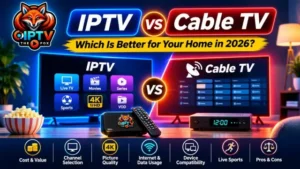
IPTV vs Cable TV: Which Is Better for Your Home?
Choosing between IPTV and traditional cable TV depends on how you watch television and what equipment you already have.
IPTV uses an internet connection to deliver television content, while cable TV uses a traditional cable network.
Both options have advantages and limitations. Your internet connection, preferred channels, pricing, device compatibility, and viewing habits can all influence your decision.
If you want to understand the differences in more detail, read our previous guide:
IPTV vs Cable TV: Which Is Better for Your Home in 2026?
In that article, we compare costs, channel selection, picture quality, internet requirements, device compatibility, and flexibility.
Try IPTV THE FOX With a Free Trial and Get Setup Assistance
Choosing an IPTV player is only one part of getting started. You also need a compatible playlist from a source that is authorized to distribute its content.
At IPTV THE FOX, we offer a free trial so you can test the service and decide whether it meets your viewing needs before choosing a subscription.
We also understand that installing an application and configuring a playlist can be confusing, especially if you are new to IPTV.
That is why our support team is available to guide customers through the setup process.
When you contact us, we can help with:
Guidance on installing compatible applications.
Step-by-step playlist configuration assistance.
Help entering the connection details supplied to you.
Basic troubleshooting for supported devices.
Guidance for compatible FireStick and other supported devices.
You do not need to work through every setup step alone. Tell us which device you use, and our team can guide you through the process.
Want to test the service first? Contact IPTV THE FOX to request your free trial and receive assistance with installation and setup.
Visit our website: IPTV THE FOX
Please make sure that any television content you access is properly licensed and authorized for distribution in your region.
Frequently Asked Questions About TiviMate on FireStick
1. Is TiviMate legal?
TiviMate is a media player. The legality of the content you access depends on the source and whether that source has the necessary distribution rights. Always use authorized playlists.
2. Does TiviMate need a VPN?
A VPN is not inherently required to install or use TiviMate. Whether you need one depends on your privacy preferences, network environment, and applicable laws. A VPN does not make an unauthorized content source legal.
3. Is TiviMate free?
TiviMate has a free version and an optional Premium version. Premium pricing and features may change, so check the current details from the developer.
4. How much does TiviMate Premium cost?
The price can vary by region and over time. Check the current price in the official purchase or Companion process before paying
5. Can I use TiviMate without an IPTV subscription?
You can install and open the player without an IPTV subscription. However, you need a compatible playlist to access live television content.
6. Can you pause live TV on TiviMate?
Playback controls depend on the application, device, and stream source. Some pause or time-shifting features may not be available for every channel.
7. Does TiviMate work on devices other than FireStick?
TiviMate is designed for compatible Android TV and Fire TV devices. It is not a native iOS, Apple TV, or Roku application.
8. How do I update TiviMate on FireStick?
If you installed TiviMate through an app store, check for updates there. If you installed it manually, follow the developer’s current update instructions and use a trusted installation source.
9. Can I record live TV with TiviMate?
Recording availability depends on the application version, device, storage, playlist, and content permissions.
10. How do I add multiple IPTV playlists in TiviMate?
Open the playlist management section and choose the option to add another playlist, if supported by your version and Premium access.
11. Can I install TiviMate on FireStick without Downloader?
Other installation methods may be possible depending on your device and the developer’s current distribution options. Use only trusted installation sources and follow the relevant Fire TV instructions.
12. Is TiviMate available in the Amazon Appstore?
Availability can change. Search the Amazon Appstore on your device and check the developer’s official installation guidance if you cannot find it.
13. Can IPTV THE FOX help me install TiviMate?
Our support team can guide you through compatible application installation and playlist configuration. You can also request a free trial to test the service before choosing a subscription.
Final Thoughts
Learning how to install TiviMate on FireStick can help you organize compatible IPTV playlists through a television-friendly interface.
By following the steps in this guide, you can understand the installation process, configure your playlist, explore the available features, and troubleshoot common problems.
Remember that TiviMate is a player, not a television content provider. You need an authorized playlist to access channels and other content.
If you need help getting started, IPTV THE FOX offers a free trial and step-by-step setup assistance. Contact our team to learn more and get guidance for your compatible device.