IPTV Smarters Failed to Authorize? 9 Easy Fixes for 2026
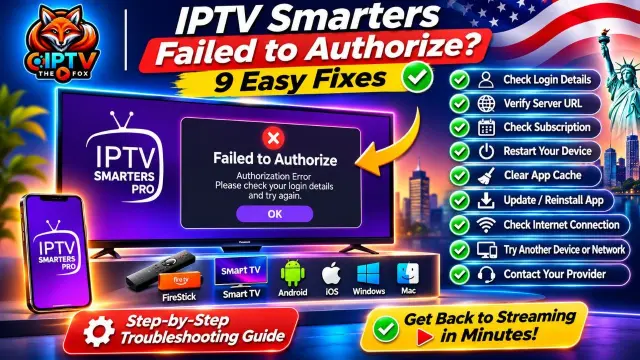
Seeing the IPTV Smarters Failed to Authorize message when trying to access your playlist can be frustrating, especially when you just want to watch your favourite programmes. This error usually means that the app cannot verify your login details or communicate successfully with the service connected to your account.
The good news is that the problem does not always mean your device is faulty or your subscription has stopped working. Incorrect login information, an outdated server address, an expired subscription, network problems, or temporary service interruptions can all cause authorization errors.
In this guide, we explain what the error means and walk you through nine practical troubleshooting steps. Whether you use an Amazon FireStick, Samsung Smart TV, Android device, iPhone, tablet, or computer, these instructions can help you identify the cause and find the right solution.
What Does IPTV Smarters Failed to Authorize Mean?
The IPTV Smarters Failed to Authorize error appears when the application cannot validate the information entered during login or cannot establish a successful connection with the playlist provider.
For example, if you use an Xtream Codes login, the application normally requires three details:
Username: Your account username.
Password: Your account password.
Server URL: The correct server address provided by your service provider.
If one of these details is incorrect, incomplete, or outdated, the application may reject the login attempt.
The same issue can occur when using an M3U playlist if the playlist URL is invalid, expired, or no longer accessible.
Important: IPTV Smarters is a media player. It does not automatically provide television channels or subscriptions. You need a valid playlist or account from a provider authorised to distribute the content you access.
9 Common Causes of IPTV Smarters Authorization Errors
Before changing your device settings, it helps to understand what might be causing the problem.
1. Incorrect Username or Password
One of the most common reasons for an authorization error is incorrect login information. A single missing character, extra space, or typing mistake can prevent the application from verifying your account.
This can happen when copying credentials from an email or message, especially if the username or password contains a combination of letters and numbers.
2. Incorrect or Outdated Server URL
Your server URL is just as important as your username and password. If the address contains a typing error or has been changed by your provider, IPTV Smarters may not be able to connect.
Always use the exact server address supplied by your provider. Do not replace it with a random address found online.
3. Expired or Inactive Subscription
If your subscription has expired, been suspended, or has not yet been activated, your login details may no longer work.
Contact your provider to confirm your account status before reinstalling the application or resetting your device.
4. Internet Connection Problems
A weak or unstable internet connection can interrupt communication between IPTV Smarters and the server.
Even if other applications appear to work, your connection may experience temporary DNS, router, or network problems.
5. Temporary Server Maintenance
Sometimes the problem is not on your side. A provider may be performing maintenance, updating its systems, or experiencing a temporary service interruption.
If your login details are correct and your internet connection is stable, ask your provider whether the service is operating normally.
6. Outdated IPTV Smarters Application
An older application version may contain bugs or compatibility problems. Updating the application can sometimes resolve login and connection issues.
Only download applications from a trusted source or the official app store available on your device.
7. Corrupted Application Cache
Temporary files stored by the application can occasionally become corrupted. This may cause unexpected errors, slow performance, or problems when loading account information.
Clearing the application cache can help resolve certain issues without deleting your account details.
8. Device or Network Restrictions
Some networks have security settings, parental controls, firewalls, or DNS configurations that may affect connections to particular services.
If the application works on another network, the issue may be related to your original network configuration.
9. Account or Connection Limitations
Some subscriptions have restrictions concerning simultaneous connections, registered devices, or account usage.
If your provider limits the number of supported connections, using the account beyond that limit may cause access problems. Check your subscription terms with the provider
How to Fix IPTV Smarters Failed to Authorize
Try the following solutions in order. After each step, reopen IPTV Smarters and check whether the authorization error has disappeared.
Fix 1: Double-Check Your Login Information
Start with the simplest solution: verify your username, password, and server URL.
Follow these steps:
Open IPTV Smarters on your device.
Go to the account or login screen.
Check whether you selected the correct login method.
Carefully compare your username with the information supplied by your provider.
Check your password for missing or incorrect characters.
Verify that the server URL is exactly correct.
Save the details and try logging in again.
Tip: Copy and paste your credentials when possible. Make sure you do not accidentally include spaces before or after the information.
If you still receive the error, ask your provider to confirm that the credentials are active.
Fix 2: Verify Your Server URL
A correct username and password will not help if the server address is wrong.
Ask your provider to confirm the current server URL. If you have an old login message, check whether the provider has supplied updated connection details.
Pay attention to:
Spelling and punctuation.
The correct domain name.
The correct protocol, such as HTTP or HTTPS.
Any port number included in the address.
Do not guess the server address. Use only the connection information supplied by your provider.
Fix 3: Check Your Subscription Status
If you are certain that your credentials are correct, confirm that your account is active.
Contact your provider and ask them to check:
Whether your subscription is active.
Whether your account has been activated successfully.
Whether your login details have changed.
Whether your account has reached its connection limit.
If you have recently purchased or renewed a subscription, ask the provider to confirm that the activation has been completed.
Fix 4: Restart Your Device and Router
A simple restart can resolve temporary network or application problems.
Follow these steps:
Close IPTV Smarters completely.
Turn off your streaming device.
Unplug your router from the power source.
Wait approximately 30 seconds.
Reconnect your router and allow it to restart.
Turn your device back on.
Open IPTV Smarters and try again.
This process refreshes your local network connection and may resolve temporary connectivity issues.
Fix 5: Check Your Internet Connection
Make sure your device has a stable internet connection.
You can try the following:
Open another application that requires internet access.
Restart your Wi-Fi connection.
Move closer to your router if the signal is weak.
Try an Ethernet connection if your device supports it.
Restart your router if other applications are also experiencing problems.
If the error occurs only on one network, contact your internet service provider to investigate possible connection or DNS issues.
Fix 6: Clear IPTV Smarters Cache
If you use an Android device or FireStick, clearing the application cache may help.
On Amazon FireStick:
Open Settings.
Select Applications.
Choose Manage Installed Applications.
Select Clear Cache.
Reopen the application.
On Android TV or an Android device:
Open Settings.
Go to Apps.
Select IPTV Smarters.
Open Storage.
Choose Clear Cache, if available.
Launch the application again.
Be careful with the Clear Data option. Unlike clearing the cache, clearing data may remove saved login information and application settings. Use it only when necessary and make sure you have your credentials before proceeding.
Fix 7: Update or Reinstall IPTV Smarters
An outdated or damaged installation can sometimes cause authorization problems.
First, check whether an update is available through a trusted application store or the application’s official distribution channel.
If updating does not help, you can consider reinstalling the application.
Before uninstalling it:
Save your username and password.
Make sure you have the correct server URL or M3U playlist.
Confirm that your account is still active.
After reinstalling, enter your details carefully and test the connection again.
Fix 8: Test Another Device or Network
r, or network.
If it works on another internet connection, your original network may need further investigation.
Only use your account according to the device and connection limits included in your subscription.
Fix 9: Contact Your IPTV Provider
If none of the previous solutions works, contact your provider before making further changes.
Send them the following information:
A screenshot of the authorization error.
The device model you are using.
The application name and version.
The time when the problem started.
Confirmation that you have checked your login details and internet connection.
Ask the provider to verify your account status, server address, and whether any maintenance or service interruption is taking place.
Avoid sharing your password publicly or posting your complete login details in online forums.
How to Fix IPTV Smarters Failed to Authorize on Different Devices
The general troubleshooting steps are similar across devices, but the settings menus may differ.
IPTV Smarters Failed to Authorize on FireStick
If you use an Amazon FireStick, try these steps:
Restart your FireStick.
Check that it is connected to the internet.
Open Settings and select Applications.
Choose Manage Installed Applications.
Select IPTV Smarters.
Clear the cache.
Reopen the application and verify your login details.
If the problem continues, check whether an application update is available from a trusted source.
You can also test another internet connection to determine whether the problem is related to your network.
IPTV Smarters Failed to Authorize on Samsung Smart TV
Samsung TV users may experience authorization errors because of incorrect login details, application problems, or network interruptions.
Try the following:
Restart your Samsung Smart TV.
Restart your internet router.
Check that the TV is connected to the internet.
Open the application again.
Verify your username, password, and server URL.
Check whether an application update is available.
Contact your provider if the account still cannot be verified.
The exact application settings and available update options depend on your Samsung TV model and software version.
IPTV Smarters Failed to Authorize on Android TV
For Android TV and Android TV boxes:
Open Settings.
Select Apps.
Find IPTV Smarters.
Clear the application cache.
Check for available application updates.
Restart your Android device.
Enter your account details again.
If the error remains, test the account on another compatible device.
IPTV Smarters Failed to Authorize on iPhone or iPad
On iOS devices, try these basic steps:
Close IPTV Smarters completely.
Check your Wi-Fi or mobile data connection.
Restart your iPhone or iPad.
Check for an application update.
Verify your login information.
Reinstall the application if necessary.
Remember to save your account details before reinstalling the application.
How to Prevent IPTV Smarters Authorization Errors
You can reduce the chances of experiencing the same problem by following a few simple practices.
Keep your login details safe: Store your credentials in a secure place.
Check your subscription: Make sure your account is active before troubleshooting the application.
Use the correct server address: Always use the latest information provided by your provider.
Update your application: Install updates from trusted sources.
Maintain a stable internet connection: Restart your router when connection problems occur.
Avoid unnecessary changes: Do not change advanced network settings unless you understand their purpose.
Respect connection limits: Follow the device and simultaneous-connection limits of your subscription.
These steps can help keep your application organised and make future troubleshooting easier
When Is the Problem Coming From Your Provider?
Sometimes, IPTV Smarters Failed to Authorize is not caused by the application or your device.
A provider-side issue may be responsible when:
Your login details were working previously but suddenly stopped.
The same error appears on more than one compatible device.
Your internet connection works normally in other applications.
Your provider has announced maintenance or updated server information.
Your account has not been activated or renewed correctly.
In these situations, reinstalling the application repeatedly is unlikely to solve the problem. Contact your provider and request an account and server check.
Frequently Asked Questions About IPTV Smarters Failed to Authorize
1. Why does IPTV Smarters keep saying Failed to Authorize?
This message usually appears when the application cannot verify your login details or connect successfully to the playlist server. Check your username, password, server URL, subscription status, and internet connection.
2. Can an expired subscription cause IPTV Smarters authorization errors?
Yes. If your subscription has expired or your account is inactive, the provider may no longer allow the application to authenticate your login. Contact your provider to confirm your account status.
3. Why does IPTV Smarters work on my phone but not on my FireStick?
The issue may be related to the FireStick application, saved cache, device settings, or network connection. Restart the FireStick, clear the application cache, and verify that you are entering the correct credentials.
4. How do I fix IPTV Smarters Failed to Authorize on Samsung TV?
Restart your television and router, verify your login details, check for application updates, and confirm that your subscription is active. If the problem continues, contact your provider.
5. Will reinstalling IPTV Smarters delete my subscription?
Reinstalling the application may remove locally saved account details and settings, but it does not necessarily cancel your subscription with the provider. Save your credentials before uninstalling the application.
6. Does IPTV Smarters provide channels?
No. IPTV Smarters is a media player. You need a compatible playlist or account from a provider authorised to distribute the content you want to access
7. Should I use a VPN to fix IPTV Smarters authorization errors?
A VPN is not a universal solution for authorization errors. It will not correct an incorrect username, password, expired subscription, or invalid server address. Check your account and network first, and follow applicable laws and service terms.
8. What should I send my provider when IPTV Smarters is not working?
Send a screenshot of the error, your device model, the application version, and a short explanation of when the problem started. Never share your password publicly.
Need Help With Your IPTV Setup?
If you have checked your login information, internet connection, and application settings but still cannot access your playlist, the next step is to identify whether the problem comes from your device, account, or provider.
At IPTV THE FOX, we aim to make setup and troubleshooting straightforward. Our team can help users understand their compatible device options, check the information supplied with their subscription, and troubleshoot common setup difficulties.
Visit our website to learn more about IPTV THE FOX and the available support options.
Have a question about your device or setup? Contact our support team and explain the error you are experiencing.
Final Thoughts
The IPTV Smarters Failed to Authorize message can have several causes, but many are straightforward to investigate. Incorrect credentials, an outdated server URL, an inactive subscription, application cache problems, and network interruptions are among the first things to check.
Work through the troubleshooting steps one at a time. If the error continues across multiple devices, ask your provider to verify your account and server information.
With the correct details and a stable connection, you can identify the source of the problem and take the appropriate next step.